Drives lifespans are measured in number of read/write cycles but that's of little real value.
From past experience I have found that primary boot drives in a computer usually have a lifetime of around 5 years under average use. If you have a drive that old, consider it's days numbered. External drives in theory should last just as long, but they tend to run hotter due to the enclosures. However as long as Windows is configured to spin down the drives after a certain amount of time, the heat is only an issue when the drive is actually being accessed.
I've seen retail external drives last 6 years, but I've also seen a lot of them fail in less than a year. The Western Digital "My Book" drives that were manufactured around 3 - 4 years ago were notorious for failing within a year. Very disappointing. The newer design seems to be better. Seagate externals seem to hold up better still, but I would still rather build my own around Western Digital green drives.
There's mixed opinions about whether it's better to leave a PC running all the time or turn it off at night and whether or not to enable sleep mode for the hard drive. My personal opinion is a modern PC can run 24/7 just fine and it's probably better for it (electronics prefer a constant stable temperature to sudden changes). I call it the "light bulb theory": light bulbs usually burn out at the moment you turn them on because that's the moment of maximum current draw. If you leave the bulb on 24/7 you put more hours on it but you stress the filament less. It'll still wear out eventually, but IMO it will last longer.
I leave all my PCs running 24/7 (workstation, server, media center PCs that I record TV shows with, wife's laptop). I do, however, configure the power power settings to spin down (sleep) the hard drive after an hour.
Western Digital and Seagate both make good drives. Maxtor drives are traditionallyt cheaper budget drives. Samsung has actually been cranking out some very good drives the last few years (they used to have a terrible reputation). Year to year some manufactures seem to let the quality slip and anyone can make a lemon.
I tend to avoid the biggest drives because they have the newest untested technology, so I avoid anything over 1Tb right now. 1Tb drives are very mature technology. I stick to WD and Seagate drives with 3 - 5 year warranties. Green drives for externals, blue or black drives for internals (black is higher performance). If you buy a drive with a 1 year warranty that tells me the manufacturer doesn't think it'll last more than a year, so I avoid them.
Yes, Spinrite Level 2 is for data recovery (whe you have a problem), 4 is for preventative maintenance. However a drive that is not readable even after a level 2 scan might be readable after a more aggressive level 4 scan, so if you really need the data, and you can wait, it's worth a try.
As I said before, drives really need to have their sectors refreshed every once in a while to avoid "bit rot". The manufacturers will argue that it's not necessary because the drive does this behind the scenes all the time. The trouble is that in the real world it's just not true.
A drive will die when it's time comes no matter what, but I believe that running spinrite on it every 6 - 8 months will give you the maximum life from it and avoid sudden surprise failures. You will also generally get some warning of impending problems when you run a spinrite scan, and when something disastrous DOES occur, you stand a better chance of recovering data if all the sectors have strong recording signals.
When Spinrite finishes, it will display a green "Finished" window and then you have the option of toggling through all the windows using the arrow keys to see the results. One particular window shows the results of all the scans on each drive and each partition with a list of total errors that occurred during the scan, and a sector map showing any recovered or unrecoverable sectors. If you see any red bars in the errors list, then that is a sign of flaky drive and I wouldn't trust it with mission critical data.
?'s About Running SpinRite 6 on 500 gb Drive
-
FlyingPenguin

- Flightless Bird
- Posts: 33161
- Joined: Wed Nov 22, 2000 11:13 am
- Location: Central Florida
- Contact:
Penguin, You are such a knowledgeable person  ...
...
I run my DT 24/7, but not my laptop, as it gets pretty hot while I'm using it so I tend to just close the lid (sleep). I need to check the settings on my desktop to be sure the drives are sleeping when appropriate.
My DT is probably 5-6 years old; I check the event viewer logs regularly and luckily no problems have popped up YET. I'm thinking the scans will ultimately reveal the condition of the drives, but I suppose I should think about replacing the boot drive or more likely the DT... I'm due for a new one soon. Plus I would tailor it to have an extra bay for that drive bay mentioned in your previous post.
As far as enclosures go... what do you think about an external box that will hold multiple drives, 3-4 slots, with a fan maybe, where the drives could be easily removed for use in the drive bay (or for now slipped into the DT case) for Spinrite scans? Any economical brands come to mind?
Sharon
... I run my DT 24/7, but not my laptop, as it gets pretty hot while I'm using it so I tend to just close the lid (sleep). I need to check the settings on my desktop to be sure the drives are sleeping when appropriate.
My DT is probably 5-6 years old; I check the event viewer logs regularly and luckily no problems have popped up YET. I'm thinking the scans will ultimately reveal the condition of the drives, but I suppose I should think about replacing the boot drive or more likely the DT... I'm due for a new one soon. Plus I would tailor it to have an extra bay for that drive bay mentioned in your previous post.
As far as enclosures go... what do you think about an external box that will hold multiple drives, 3-4 slots, with a fan maybe, where the drives could be easily removed for use in the drive bay (or for now slipped into the DT case) for Spinrite scans? Any economical brands come to mind?
Sharon
-
FlyingPenguin
- Flightless Bird
- Posts: 33161
- Joined: Wed Nov 22, 2000 11:13 am
- Location: Central Florida
- Contact:
Well if you're talking about a multiple enclosure, you're probably talking about a NAS RAID (Network attached storage). One of my clients is using the Netgear ReadyNAS NV+ and that seems to be a nice reliable unit.
If you have an old PC lying around and some extra drives, you can make your own NAS. I've put together a couple using the free version of the UnRAID server: http://www.lime-technology.com/download
If you have an old PC lying around and some extra drives, you can make your own NAS. I've put together a couple using the free version of the UnRAID server: http://www.lime-technology.com/download
---
“The Government of Spain will not applaud those who set the world on fire just because they show up with a bucket.” - Prime Minister of Spain, Pedro Sánchez

“The Government of Spain will not applaud those who set the world on fire just because they show up with a bucket.” - Prime Minister of Spain, Pedro Sánchez
-
FlyingPenguin
- Flightless Bird
- Posts: 33161
- Joined: Wed Nov 22, 2000 11:13 am
- Location: Central Florida
- Contact:
Oh, and let me stress something now that SSD drives are so popular: DO NOT EVER run Spinrite (or any kind of sector scan or defrag) on an SSD (Solid State Drive) or a flash drive.
Flash memory has a limited number of write cycles, and a sector scan and defrag INTENSIVELY writes to the hard drive.
An SSD doesn't benefit at all from either and it will greatly reduce the life of the drive.
Flash memory has a limited number of write cycles, and a sector scan and defrag INTENSIVELY writes to the hard drive.
An SSD doesn't benefit at all from either and it will greatly reduce the life of the drive.
---
“The Government of Spain will not applaud those who set the world on fire just because they show up with a bucket.” - Prime Minister of Spain, Pedro Sánchez
“The Government of Spain will not applaud those who set the world on fire just because they show up with a bucket.” - Prime Minister of Spain, Pedro Sánchez
The raid thing sounds a little more complicated than I was thinking... I probably just don't understand what it is that I'm trying to do... I want to slide the 3-4 extra drives into one case and access them as if they were separate. Just a desktop space saver really... I'll probably use these drives as a backup for other info...
I know what a flash drive but what is an example of an SSD drive? Are those the small portable drives? I have a couple of those that I use frequently and was thinking of running Spinrite on them.
Just finished the scans today...I don't know if I accessed the correct Scan Results screens though, I ended up scrolling through the same screen used to choose which drives/partitions to scan. If those results were for the scans performed it seems my drives came back with minimal errors. My main c: drive mentioned 7 cabling errors; I don't have any idea what that is. The bad WD drive had 145 rewritten sectors and a another had a few write/read errors. It was going to do a 492 hour scan on my NEW 1.5TB Seagate, but I thought 20 days for one drive was a little extreme :lol So hopefully that bad WD drive is usable again, but I think I'll not be using it for anything important for a while just to see how things go.
Sharon
I know what a flash drive but what is an example of an SSD drive? Are those the small portable drives? I have a couple of those that I use frequently and was thinking of running Spinrite on them.
Just finished the scans today...I don't know if I accessed the correct Scan Results screens though, I ended up scrolling through the same screen used to choose which drives/partitions to scan. If those results were for the scans performed it seems my drives came back with minimal errors. My main c: drive mentioned 7 cabling errors; I don't have any idea what that is. The bad WD drive had 145 rewritten sectors and a another had a few write/read errors. It was going to do a 492 hour scan on my NEW 1.5TB Seagate, but I thought 20 days for one drive was a little extreme :lol So hopefully that bad WD drive is usable again, but I think I'll not be using it for anything important for a while just to see how things go.
Sharon
-
FlyingPenguin
- Flightless Bird
- Posts: 33161
- Joined: Wed Nov 22, 2000 11:13 am
- Location: Central Florida
- Contact:
An SSD is a solid state replacement for a regular hard drive. It's extremely fast flash memory. I am using one as a boot drive in my workstation. It's much faster than a regular hard drive.
I don't know if they make any multiple drive USB enclosures that just act as individual drives. You're best off with separate enclosures. Considering you can get a 2Tb HDD for around $80 and then a USB enclosure for $30, that's a heck of a lot of storage for a reasonable price.
Cabling errors a re abit of a concern. You really shouldn't see those. Only 7 on a whole drive isn't bad, but it's worrisome. Cabling errors generally indicate a problem with the controller electronics on the hard drive, or (as it implies) a problem with the data cable connecting the drive to the motherboard. Sometimes you get a touch of corrosion on the connectors and just unplugging and then re-attaching the data cable on both ends will clean the contacts.
Cables are cheap and if you have a spare set of SATA cables, it wouldn't hurt to swap them out just in case and toss the old ones.
I don't know if they make any multiple drive USB enclosures that just act as individual drives. You're best off with separate enclosures. Considering you can get a 2Tb HDD for around $80 and then a USB enclosure for $30, that's a heck of a lot of storage for a reasonable price.
Cabling errors a re abit of a concern. You really shouldn't see those. Only 7 on a whole drive isn't bad, but it's worrisome. Cabling errors generally indicate a problem with the controller electronics on the hard drive, or (as it implies) a problem with the data cable connecting the drive to the motherboard. Sometimes you get a touch of corrosion on the connectors and just unplugging and then re-attaching the data cable on both ends will clean the contacts.
Cables are cheap and if you have a spare set of SATA cables, it wouldn't hurt to swap them out just in case and toss the old ones.
---
“The Government of Spain will not applaud those who set the world on fire just because they show up with a bucket.” - Prime Minister of Spain, Pedro Sánchez
“The Government of Spain will not applaud those who set the world on fire just because they show up with a bucket.” - Prime Minister of Spain, Pedro Sánchez
I think I'll run the scan again on that drive. To be honest I'm not sure I was looking at the final results of the scans. At least I was expecting something else... a different type of report. This way I'll kill 2 birds... Get the actual report and check those cabling errors again. I'll also check the cables to the MB first.
I recently purchased a 1.5TB seagate and transferred everything from those WD drives to it. Same amount of space just on one drive. I don't really NEED the space at this time, I just thought I'd make use of the extra drives. I'll do a little research on the Raid idea.
Thx,
Sharon
I recently purchased a 1.5TB seagate and transferred everything from those WD drives to it. Same amount of space just on one drive. I don't really NEED the space at this time, I just thought I'd make use of the extra drives. I'll do a little research on the Raid idea.
Thx,
Sharon
-
FlyingPenguin
- Flightless Bird
- Posts: 33161
- Joined: Wed Nov 22, 2000 11:13 am
- Location: Central Florida
- Contact:
While the scan is running you can flip through pages and one of them is the SMART status page which shows you any errors the drive encounters. This data is also available in a scrolled (up/down) window at any time that shows a more complete report on each drive & partition scanned:
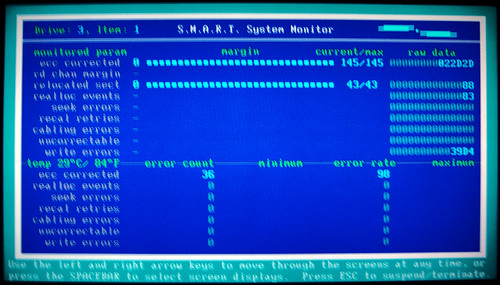
Now be aware, errors are normal - modern drives have seek and CRC errors all the time and they automatically correct for it. You just never want to see red indicators which indicate that the drive is reporting unusually high numbers of errors.
You also never want to see damaged unrecoverable sectors in the main scan window (a red "U"):
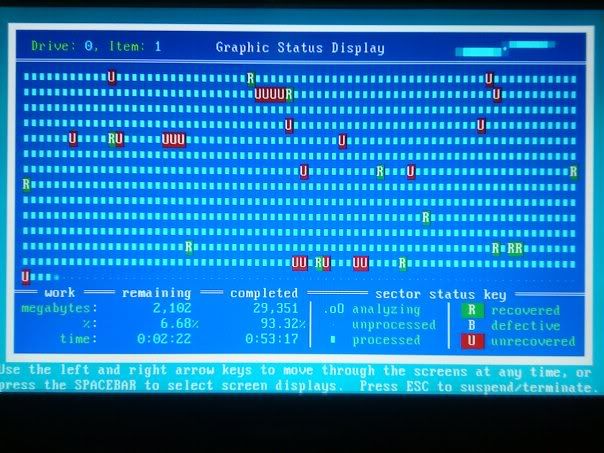
That means one or more sectors were damaged and some data was not recoverable. Spinrite will try to recover as much data as possible from a damaged sector while a regular scandisk scan will just throw out all the data in the damaged sector.
I would never trust a drive with damaged sectors. Damaged sectors are usually physical platter damage (disk crash) and they usually multiply due to debris from the crash getting wedged between the heads and the platter and gouging out more.
Now be aware, errors are normal - modern drives have seek and CRC errors all the time and they automatically correct for it. You just never want to see red indicators which indicate that the drive is reporting unusually high numbers of errors.
You also never want to see damaged unrecoverable sectors in the main scan window (a red "U"):
That means one or more sectors were damaged and some data was not recoverable. Spinrite will try to recover as much data as possible from a damaged sector while a regular scandisk scan will just throw out all the data in the damaged sector.
I would never trust a drive with damaged sectors. Damaged sectors are usually physical platter damage (disk crash) and they usually multiply due to debris from the crash getting wedged between the heads and the platter and gouging out more.
---
“The Government of Spain will not applaud those who set the world on fire just because they show up with a bucket.” - Prime Minister of Spain, Pedro Sánchez
“The Government of Spain will not applaud those who set the world on fire just because they show up with a bucket.” - Prime Minister of Spain, Pedro Sánchez